Website AI Chat Assistant: Answer Visitor Questions 24/7
Learn how to enable and configure the AI chat assistant on your Lawnager-generated website to capture leads and answer customer questions automatically.
Last updated July 12, 2026
Your Lawnager website comes with a built-in AI chat assistant that answers visitor questions around the clock — no extra software, no monthly add-on fee. When a homeowner lands on your site at 10pm wondering about your prices, the chatbot responds instantly with accurate information from your own business profile. It can even collect quote requests and send them straight to your dashboard.
How the Chat Assistant Works
The AI is grounded exclusively in your business data — your services, pricing, hours, and service area. It will never invent prices or offer discounts you haven't set. If a visitor asks something outside your configured info, the chatbot tells them to get in touch rather than guessing.
Visitors can also submit a quote request right from the chat window. The assistant collects their name, email, and address, then drops a draft quote into your Quotes page with a notification so you can follow up.
The assistant is fully bilingual — it responds in English or Spanish based on the visitor's language.
Turning the Chat Assistant On or Off
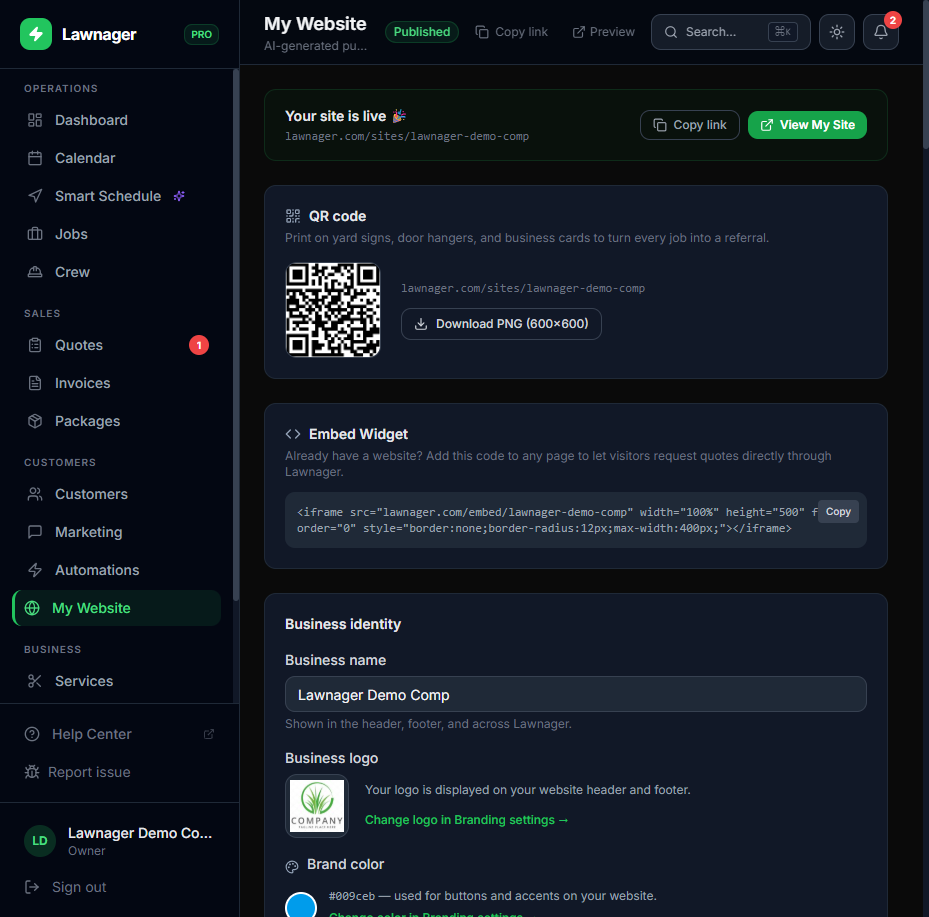
- •Go to Settings → My Website.
- •Scroll to the Chat Assistant section.
- •Toggle Enable AI Chat Assistant on or off.
The assistant is on by default for all published websites. If you want to disable it for any reason, just flip the toggle — it takes effect immediately with no page republish needed.
Tip: If you haven't published your website yet, enable the chat assistant before publishing so it's live from day one. See the AI Website Builder Guide to get your site set up first.
What the Chat Assistant Knows About Your Business
The assistant pulls information directly from your Lawnager account. To make sure it gives accurate answers, keep these areas up to date:
- •Services — your service catalog from Settings → Services
- •Pricing — flat rates, hourly rates, or per-square-foot prices set on each service
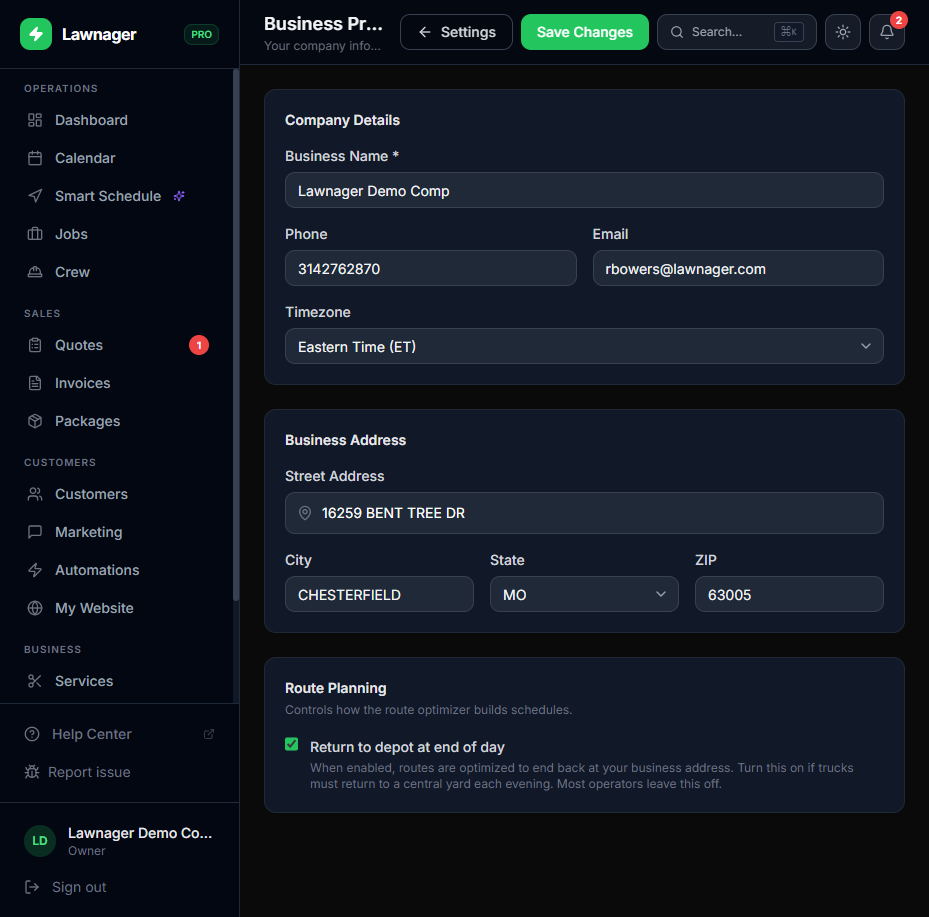
- •Business hours and contact info — from Settings → Business Profile
- •Service area — your business address and any ZIP code restrictions set on your website
The more complete your profile, the better the chatbot performs. A service with no price set will tell visitors to request a quote rather than giving a number.
How Quote Requests Come In
When a visitor submits a quote request through the chat:
- •They provide their name, email, and service address in the chat window.
- •Lawnager creates a new customer record (or matches an existing one) and opens a Draft Quote.
- •You receive a notification — push, email, or SMS depending on your notification settings.
- •The quote shows up in Quotes → Draft, tagged so you know it came from your website.
From there, use your normal quoting workflow to price the job and send it back to the customer.
Common pitfall: Quote request notifications go through your notification settings. If you haven't connected email or SMS in Settings → Notifications, you may miss incoming leads. Set up at least one channel so you're alerted right away.
Frequently Asked Questions
Does the chatbot cost extra? No — the AI chat assistant is included on every plan (Starter, Growth, and Pro) at no additional charge.
Can the chatbot book jobs directly? Not yet. It captures quote requests and routes them to your dashboard for follow-up. You send the quote and schedule the job from there.
What if a visitor asks something the chatbot can't answer? It will acknowledge the question, let the visitor know it can't help with that specific item, and prompt them to contact you directly or submit a quote request.
Will the chat show on my embedded booking widget too?
No — the chat assistant only appears on your Lawnager-generated website (yourslug.lawnager.com), not on the booking widget you embed on a third-party site.
Tips for Getting the Most Out of the Chat Assistant
- •Fill in every service price. Visitors asking "how much does lawn mowing cost?" get a real answer instead of a vague redirect.
- •Keep your hours current. If your hours change seasonally, update Settings → Business Profile so the chatbot isn't quoting old availability.
- •Check your Quotes tab daily. Website chat leads come in as draft quotes — the faster you price and send them, the higher your close rate.
- •Use the Spanish option as a selling point. If you serve Spanish-speaking neighborhoods, mention on your site that your chat assistant responds in Spanish. It's a real differentiator most competitors can't offer.
Related articles
Still have questions?
Contact support →