Switching to Lawnager: How to Import Your Customers and Go Live
Step-by-step guide to migrating from Jobber, Housecall Pro, or any other platform to Lawnager using the built-in Migration Workbench.
Last updated April 19, 2026
Switching software feels risky — but Lawnager's built-in Migration Workbench makes it straightforward. In about 15 minutes, you can import your customer list, notify your clients, and be fully operational. Here's how.
Where to Find the Migration Workbench
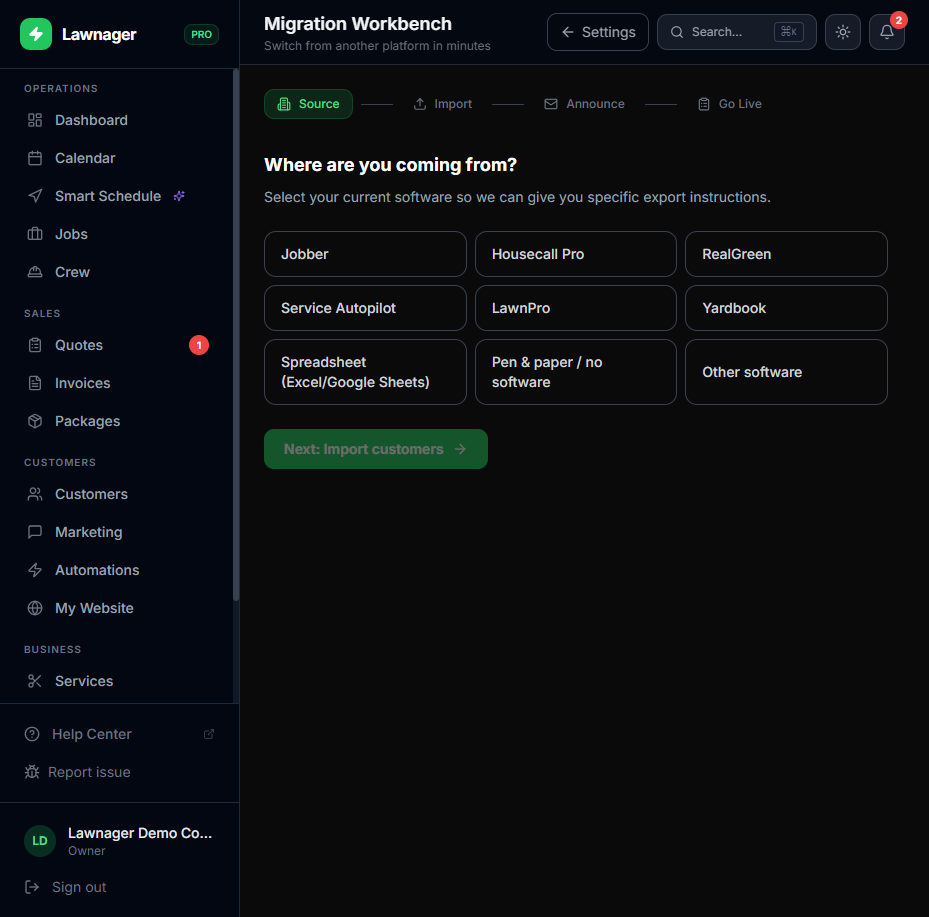
Go to Settings → Migration Workbench. You'll see a 4-step guided flow. You can complete all four steps in one sitting or come back anytime — your progress is saved.
Step 1: Select Your Current Software
Choose the platform you're moving from:
- •Jobber
- •Housecall Pro
- •RealGreen
- •Service Autopilot
- •LawnPro
- •Yardbook
- •Spreadsheet (Excel or Google Sheets)
- •Pen & paper / no software
- •Other
Once you select a platform, Lawnager shows you exact export instructions for that software — for example, "In Housecall Pro, go to Customers → Export Customers." No guessing, no digging through help docs.
If you're coming from a spreadsheet or paper records, you can download Lawnager's CSV template on the next step to format your data correctly.
Tip: Export your customer list before starting Step 1 so you have the file ready to upload in Step 2.
Step 2: Upload Your Customer Data
Upload the CSV file you exported from your previous software. Lawnager handles messy column names — you'll see a flexible column matching screen that lets you map your file's columns (like "Client Name" or "Full Name") to Lawnager fields (like First Name and Last Name).
Before anything is imported, you'll see a preview of how your data will look. Review it, fix any mismatches, and then confirm.
Import limits by plan:
- •Starter: 50 customers per import
- •Growth: 500 customers per import
- •Pro: Unlimited
Common pitfall: If your CSV has a single "Name" column instead of separate first/last name columns, map it to First Name and leave Last Name blank — you can clean up individual records after import.
Step 3: Announce the Switch to Your Customers
Once your customers are imported, Lawnager generates a ready-to-send announcement email using AI. The email:
- •Uses your business name and contact info
- •Explains that you've upgraded your scheduling system
- •Invites customers to access their new client portal
- •Is fully editable before you send
Customize the tone or details, then send it directly from this screen. Your customers get a clean, professional introduction to the portal without you writing a word from scratch.
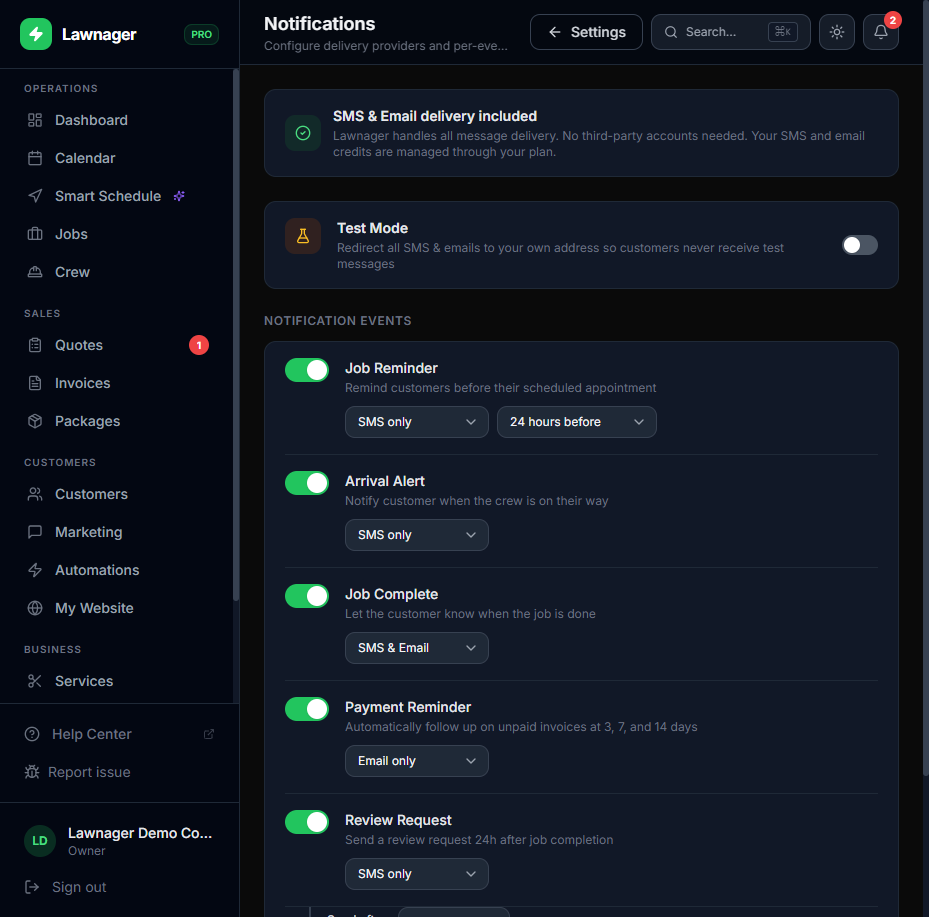
Tip: This is also a great time to enable the Customer Welcome automation in Settings → Notifications so every newly imported customer automatically receives their portal link.
Step 4: Go Live
The final step is a go-live checklist that walks you through everything you need before running your first job in Lawnager:
- •Verify your imported customer data looks correct
- •Set up your services catalog (Settings → Services)
- •Connect your payment methods (Settings → Payments)
- •Invite your crew members (Settings → Team)
- •Send a test notification to confirm SMS and email are working (Settings → Notifications → Test Mode)
Check off each item as you go. Once everything is green, you're ready to take on jobs.
After Migration: What to Do Next
- •Schedule existing recurring customers — Use the Jobs page to recreate any recurring schedules for customers who were on a regular plan
- •Connect QuickBooks — If you use QuickBooks Online, link it under Settings → Integrations to keep your books in sync
- •Set up your website — Lawnager can generate a professional business website in 30 seconds under Settings → My Website
Frequently Asked Questions
Can I import job history, not just customers? The Migration Workbench imports customer records. Past job history from your previous software is not imported — your Lawnager job history starts fresh from your go-live date.
What if my CSV has extra columns Lawnager doesn't recognize? Unrecognized columns are ignored. Only the fields you map are imported.
Can I run another import after the first one? Yes. You can run multiple imports — useful if you add customers in batches or fix a file after a first attempt.
My previous software isn't on the list. What do I do? Select Other and follow the generic CSV upload flow. As long as you can export a spreadsheet with customer names, emails, and phone numbers, the import will work.
Need help with your migration? Contact Lawnager support from the Help menu — we can review your CSV and help you map columns correctly.
Related articles
Still have questions?
Contact support →