Run Your Entire Business in Spanish
Switch Lawnager to Spanish and manage quotes, jobs, invoices, and crew tools in your preferred language.
Last updated June 26, 2026
Lawnager runs fully in Spanish — not just a few screens, but the entire operator experience. If Spanish is your preferred language, you can switch the app once and run your whole business without toggling back to English.
This article covers what's available in Spanish, how to switch the language, and what's still coming.
What's Available in Spanish
The Owner/Operator App — Fully Translated
Every page in the Lawnager web and mobile app is available in Spanish, including:
- •Dashboard — KPI cards, alerts, and calendar
- •Jobs, Quotes, Invoices, Customers — every tab, form, and action
- •Reports — financial summaries, crew payroll, customer metrics
- •Marketing — campaigns, automations, activity log
- •Packages, Equipment, Crew — full management tools
- •Settings — all settings pages, including billing, notifications, and integrations
- •AI features — the AI coach, business insights, quote estimates, and material suggestions all respond in Spanish once the app language is set
The Crew Field App — Independently Translated
Your crew members can use the field app in Spanish regardless of what language you've set for the owner app. This includes:
- •Job check-in and check-out
- •GPS tracking and navigation
- •Pre-shift checklists
- •Photo uploads
- •Daily shift clock
See the next section for how crew members switch their language directly from the field app.
Customer Messages — Translate on Demand
When composing a message to a customer, you'll see a Translate to Spanish action that converts the message text in one click.
How to Switch the App to Spanish
- •Look for the language switcher in the app (available from the navigation or account menu).
- •Select Español.
- •The app reloads in Spanish immediately — every page, form, and AI response will now appear in Spanish.
- •Your language preference is saved to your account and persists across devices. You won't need to set it again.
How Crew Members Switch to Spanish
Crew members have their own independent language setting on the field app:
- •Open the crew field app on a phone (via the link you shared, or the native app).
- •Tap the globe icon at the top of the screen.
- •Select Español.
- •The field app switches to Spanish and saves the preference on that device.
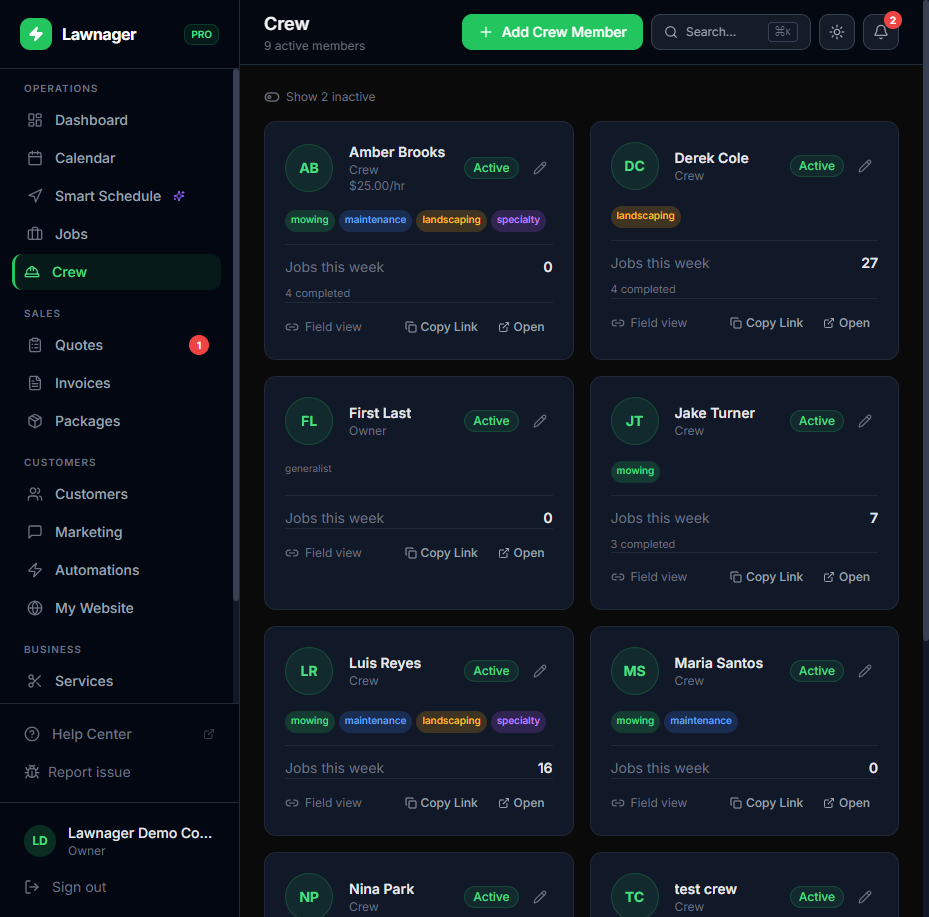
You can also set a default language per crew member from the Crew page so it's already set before they open the app:
- •Go to Crew in the left navigation.
- •Click the edit (pencil) icon on a crew member's card.
- •Under Preferred Language, select Spanish.
- •Click Save.
The crew member's field app will default to Spanish the next time they open it.
What's Still English-Only
A few customer-facing areas are still being translated and are currently English-only:
- •Customer portal — the portal your customers use to approve quotes, pay invoices, and view job history
- •Onboarding flow — the initial 6-step setup wizard for new accounts
- •Public marketing site — lawnager.com
These are actively in progress. The operator-facing tools and crew field app are fully translated today.
Tips
- •AI features work in Spanish. Once you switch the app language, the AI estimator, business insights, and growth recommendations all respond in Spanish automatically — no extra setup needed.
- •Crew language is per-device. If a crew member uses more than one phone, they'll need to set the language on each device.
- •You can mix languages. You can run the owner app in Spanish while some crew members use English on their field app — each setting is independent.
- •No plan restriction. Spanish support is available on all plans, including the free Starter plan.
Frequently Asked Questions
Does switching to Spanish affect my customers? No. The language setting only changes what you and your crew see in the app. Customer-facing emails, invoices, and the client portal are not affected by your language preference.
Can I switch back to English? Yes. Use the language switcher at any time to switch back. Your data is unaffected — only the display language changes.
Do reports and exports change language? Yes — reports, charts, and CSV exports reflect the app language you've selected.
Still have questions?
Contact support →