Crew & Team Management
Add crew members, track time, assign jobs, and manage equipment checklists.
Last updated May 9, 2026

Crew & Team Management
Manage your crew from the field without phone calls or group texts.
Adding crew members (Growth+ plans)
- •Go to Crew in the sidebar
- •Click Add Crew Member
- •Enter their name, phone, and skills
- •They receive a link to access their daily schedule via mobile browser — no app download needed
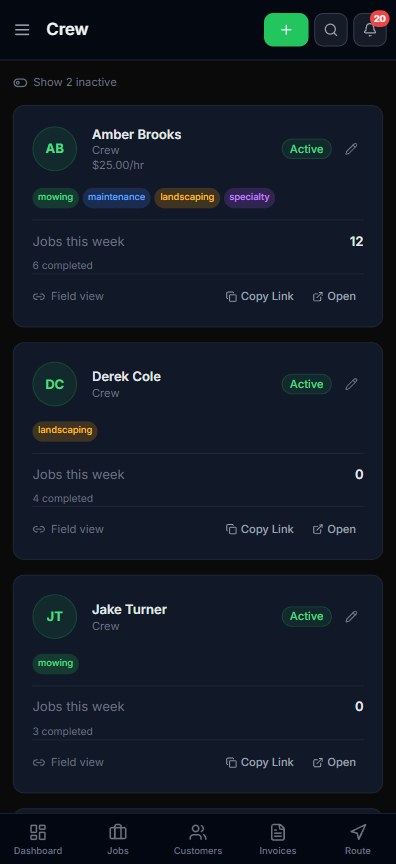
The Crew page shows every team member at a glance: skills as color-coded chips, hourly wage, and how many jobs they have this week (with completed counts). Tap any member to edit their details, see their daily field view, or copy the personal access link to share.
Daily crew view
Each crew member sees on their phone:
- •Today's route with stop-by-stop addresses
- •Job details and service notes at each stop
- •Equipment checklists (pre-shift)
- •Check-in / check-out buttons for time tracking
- •Navigation to each stop (opens Google Maps)
GPS time tracking (Growth+ plans)
When crew members check in and out of jobs, Lawnager records:
- •Arrival and departure times
- •Job duration
- •Location (GPS verification)
This data feeds into your invoicing (accurate billing) and reports (crew productivity).
Equipment checklists
Create checklists for each service type. Before starting a job, crew members confirm equipment is loaded and ready. This prevents forgotten equipment and return trips.
Reassigning jobs
If a crew member calls in sick, reassign their stops from the Route page. The remaining crew members see updated routes instantly on their devices.
Tip: Crew members only see what they need — job details, navigation, and checklists. They cannot access customer billing, pricing, or business settings.
Related articles
Still have questions?
Contact support →