Recurring Invoices: Automatically Bill Customers on a Schedule
Learn how to set up recurring invoices that automatically generate and send on a weekly, biweekly, or monthly schedule — no manual work needed.
Last updated April 19, 2026
If you have regular mowing clients or seasonal maintenance contracts, manually creating invoices every week gets old fast. Lawnager's recurring invoices feature handles billing automatically — once you set it up, invoices go out like clockwork without you lifting a finger.
How Recurring Invoices Work
Recurring invoices are tied directly to a recurring schedule on a job. When you enable auto-generate on a schedule, Lawnager creates and sends a new invoice each time the schedule repeats — matching the frequency you set (weekly, biweekly, or monthly).
For example: a weekly mowing client gets a new invoice every week, automatically, the same day their job is scheduled.
What gets automated:
- •Invoice creation (using the job's service and pricing)
- •Sending the invoice to the customer via email
- •Payment reminders if the invoice goes unpaid (at 3, 7, and 14 days)
You only need to step in if something changes.
Setting Up a Recurring Invoice
Recurring invoices require a recurring schedule to be in place first. Here's how to set it up from scratch:
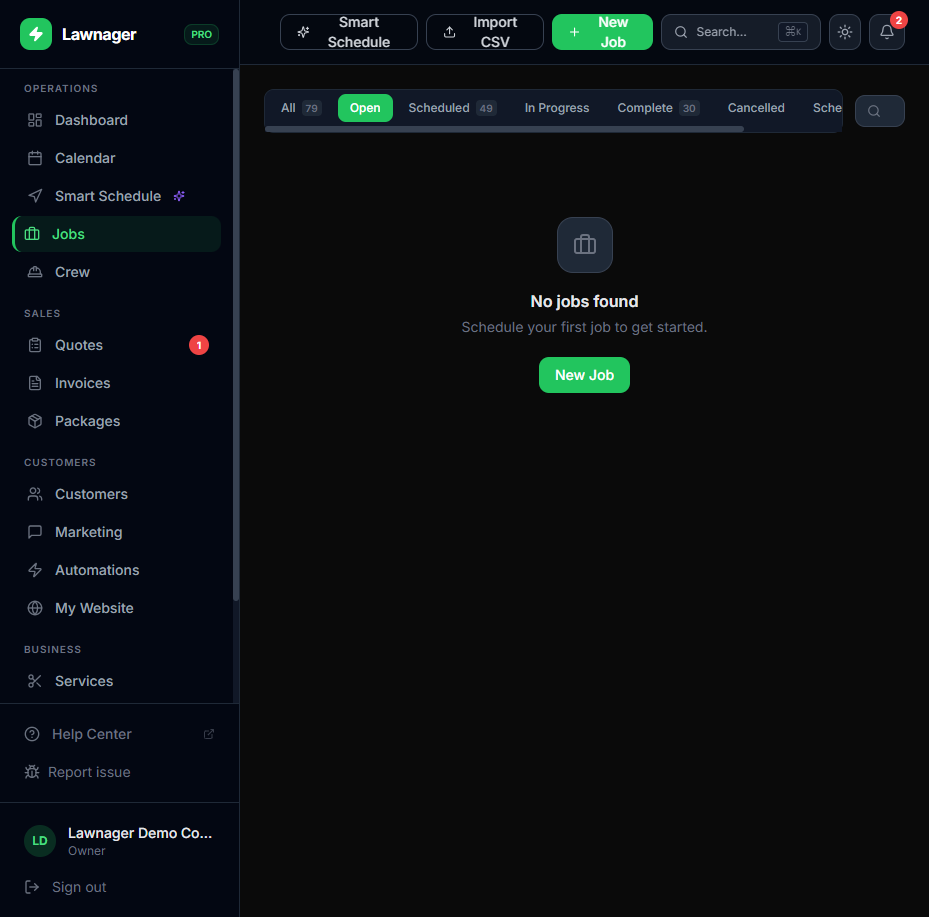
- •Go to Jobs in the left navigation
- •Click the Schedules tab
- •Find the recurring schedule you want to auto-invoice, and click Edit Schedule
- •Toggle on Auto-generate invoices
- •Confirm the billing frequency matches the schedule (weekly, biweekly, or monthly)
- •Click Save
That's it. Lawnager will generate and send invoices going forward at the schedule's frequency.
Tip: If you don't have a recurring schedule yet, create one from the Jobs page by clicking + New Job and enabling the repeat option when setting the date.
Checking Your Auto-Generated Invoices
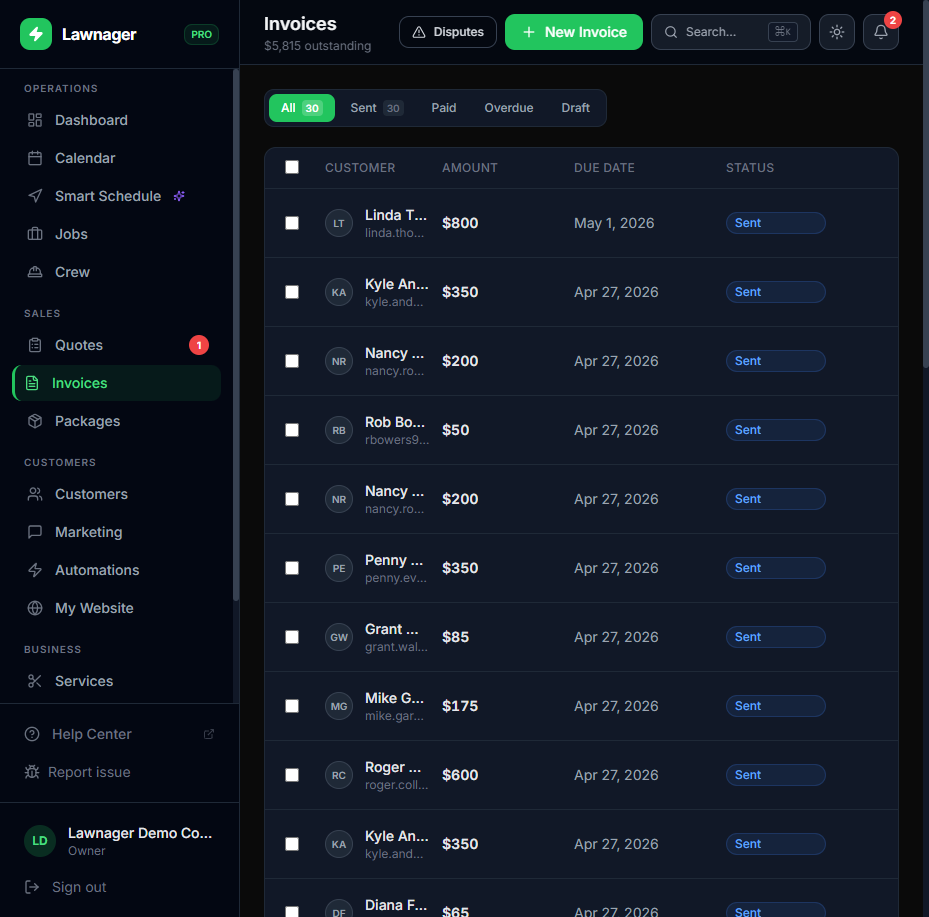
All auto-generated invoices appear in the Invoices page just like any invoice you'd create manually. You can:
- •Filter by Sent, Paid, or Overdue to see their status
- •Open any invoice to view details or make edits before it's sent
- •Mark invoices paid when a customer pays by cash, check, or Venmo
The Invoices header shows your total outstanding amount across all invoices — handy for a quick cash flow check.
What Customers See
When a recurring invoice is generated, your customer receives an email with a link to their Client Portal. From there they can:
- •View the invoice details
- •Pay online by credit card (if you have Stripe connected)
- •See their full invoice history
If the invoice goes unpaid, Lawnager automatically sends payment reminder emails at 3, 7, and 14 days — so you're not chasing people down yourself.
Enabling Auto-Invoice on Job Completion (Alternative Method)
If your jobs aren't on a recurring schedule, you can still automate invoicing using the auto-invoice on job completion setting. This generates and sends an invoice the moment a job is marked complete.
To enable it:
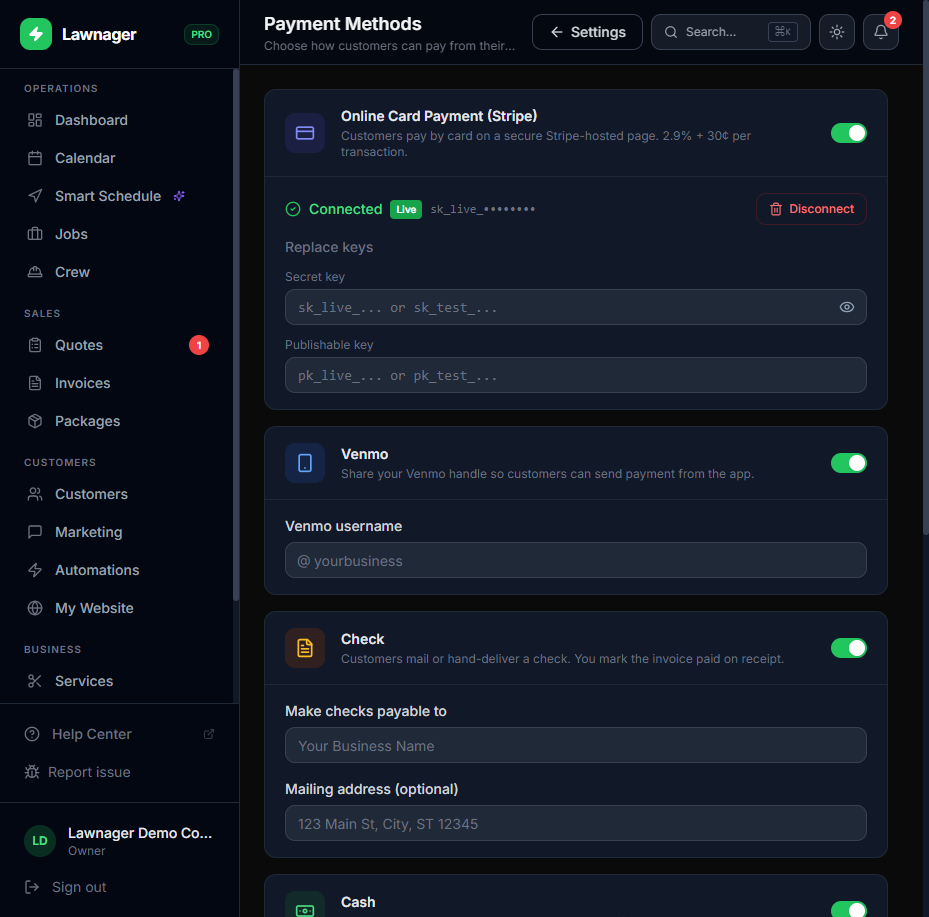
- •Go to Settings → Payments
- •Toggle on Auto-generate invoice on job completion
- •Click Save
This works for one-off jobs and recurring jobs alike. If you have both settings enabled on a recurring schedule, the auto-generate on schedule takes priority.
Common Pitfalls
- •Customer hasn't set up payment: Recurring invoices will still generate and send, but customers need Stripe connected on your end to pay online. Go to Settings → Payments to connect Stripe if you haven't already.
- •Invoice sent to the wrong email: Double-check the customer's email in Customers before enabling recurring invoices.
- •You paused the schedule: Pausing a recurring schedule also pauses invoice generation. Resume it from the Schedules tab when you're ready.
- •Duplicate invoices: If you have both auto-generate on schedule AND manually create invoices, you'll end up billing twice. Pick one method per customer.
Turning Off Recurring Invoices
To stop auto-generating invoices for a schedule:
- •Go to Jobs → Schedules
- •Click Edit Schedule on the relevant schedule
- •Toggle off Auto-generate invoices
- •Click Save
Any invoices already sent will remain in the system — only future generation stops.
Related articles
Still have questions?
Contact support →