Invoicing & Payments
Automatically generate invoices when jobs are completed, collect card payments online through the customer portal, and sync it all with QuickBooks in Lawnager.
Last updated June 20, 2026

Invoicing & Payments
Lawnager handles invoicing from job completion to payment collection.
Automatic invoice generation
When a job is marked as complete, Lawnager can automatically generate an invoice with:
- •Service name and description
- •Date and property address
- •Line items and pricing
- •Tax calculations (if enabled)
- •Payment link for online payment
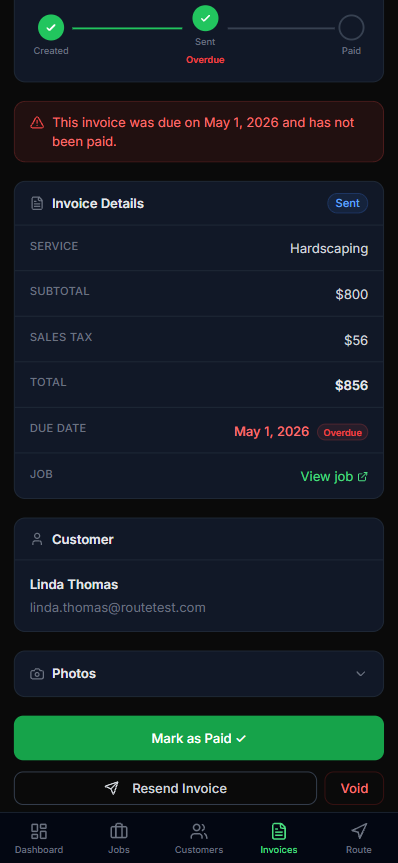
Each invoice has a status pipeline (Created → Sent → Paid) with overdue alerts when the due date passes. From the detail view you can mark paid, resend, or void in one tap.
Online payments via Stripe
Clients pay through your branded portal using credit card or bank transfer. Stripe processes the payment and deposits funds to your connected bank account.
Processing fees are standard Stripe rates (2.9% + $0.30 per transaction).
Autopay — card on file
Customers can save a card in their portal and turn on autopay. From then on, every invoice you send them is charged automatically when it comes due — the invoice is marked paid for you, and you stop chasing that customer entirely. Failed charges retry the next day and fall back to your normal payment reminders after three tries. See the Autopay: Put Cards on File and Stop Chasing Money article for the full setup and how to get customers enrolled.
Customer tipping
Turn on tipping in Settings → Payments and customers paying by card see three suggested tip percentages (you choose the presets) plus a custom amount. The tip is added to the charge and paid out to you in full — Lawnager takes nothing.
Payment tracking
The Invoices page shows all invoice statuses:
- •Draft — created but not sent
- •Sent — delivered to client
- •Paid — payment received
- •Overdue — past due date
QuickBooks sync (Growth+ plans)
Connect QuickBooks in Settings > Integrations to automatically sync:
- •Invoices
- •Payments received
- •Customer records
Late payment reminders
Enable automatic reminders in Settings > Notifications. Lawnager will send a reminder email when an invoice is past due.
Tip: Invoices sent within 24 hours of job completion get paid 2x faster than those sent after a week.
Still have questions?
Contact support →