Identifying and Re-Engaging At-Risk Customers Before You Lose Them
Learn how to use Lawnager's customer reports to spot at-risk and churned clients — and win them back before it's too late.
Last updated May 5, 2026
Losing a customer quietly is one of the most common problems in lawn care. They stop responding, skip a season, and you only notice months later. Lawnager's Reports tab flags at-risk customers automatically so you can act fast — before they hire someone else.
What Is an At-Risk Customer?
Lawnager automatically classifies customers based on how long it's been since their last completed job:
- •At-Risk: No job in 45+ days
- •Churned: No job in 90+ days
These thresholds account for typical service gaps (biweekly mowing, seasonal gaps) without over-flagging customers who are just on a less frequent schedule.
Where to Find At-Risk Customers
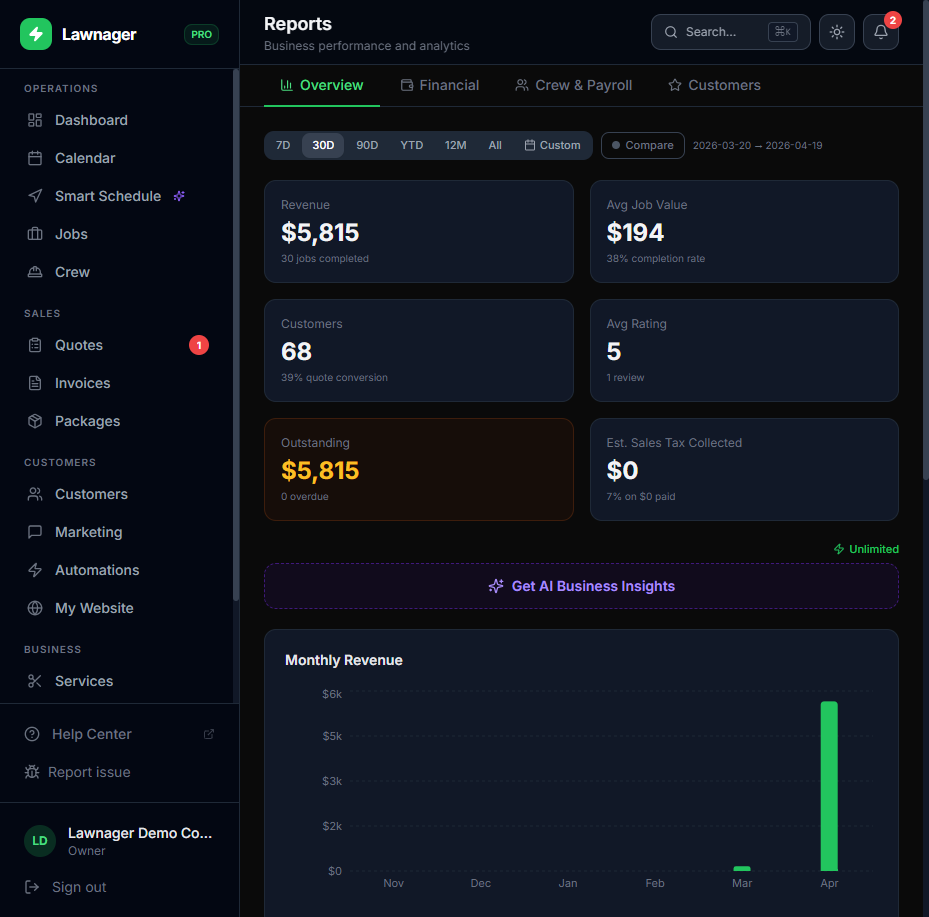
- •Go to Reports in the left sidebar.
- •Click the Customers tab.
- •Scroll down to the At-Risk & Churned Customers table.
The table shows:
- •Customer name
- •Total revenue they've generated
- •Number of completed jobs
- •Days since their last job
- •Whether they're flagged as At-Risk or Churned
Tip: Use the date filter at the top of Reports to adjust your time window. For seasonal businesses, set a longer custom range so winter gaps don't inflate your at-risk list during slower months.
Exporting the List
If you want to work through your at-risk customers outside Lawnager (or hand the list to someone on your team):
- •In the Customers tab of Reports, click Export CSV.
- •The file includes all customer metrics — revenue, job count, days since last job, and risk status.
- •Open it in Excel or Google Sheets to sort, filter, or build a call list.
How to Re-Engage At-Risk Customers
Once you've identified who's drifting away, here are three ways to bring them back using tools already in Lawnager:
Option 1 — Send a Campaign
- •Go to Marketing → Campaigns.
- •Click New Campaign.
- •Select your at-risk customers as the audience (tip: cross-reference your exported CSV to build the list).
- •Choose a re-engagement message — offer a seasonal service, a discount, or just a friendly check-in.
- •Send via SMS, email, or both.
Option 2 — Send a Package Offer
- •Go to Packages and select an existing template (or create one).
- •Click Send and select the customers you want to target.
- •At-risk customers will see the offer in their Client Portal with a countdown timer.
Packages are especially effective here because they lock customers into a recurring commitment — exactly what you need to get a drifting client back on schedule.
Option 3 — Call or Text Manually
For your highest-value at-risk customers (highest revenue in the table), a personal call often works better than an automated message. Use the exported CSV to sort by total revenue so you know who's worth prioritizing.
Reading the Customers Tab KPIs
At the top of the Customers report tab, you'll also see:
- •Total Customers — with an active vs. at-risk breakdown
- •Retention Rate % — the percentage of customers who had a job in the current period
- •Average Lifetime Value — helpful for deciding how much effort to spend on re-engagement
- •New Customers per Month — bar chart showing growth trends over the last 6 months
A falling retention rate combined with a growing new customer count is a warning sign — you're filling a leaky bucket. Fix the churn first.
Common Pitfalls
- •Don't wait until customers are churned. At-risk (45 days) is much easier to recover than churned (90+ days). Build a habit of checking this table weekly.
- •Seasonal businesses: If you offer only summer services, filter your date range to the active season before reading the at-risk table. Year-round gaps will look alarming in winter when everything is intentionally paused.
- •Don't blast everyone. A personalized message or package offer will outperform a generic re-engagement blast. Sort by revenue and work top-down.
Pro tip: After sending a campaign to at-risk customers, check Marketing → Activity to see who opened or responded. Follow up with anyone who clicked but didn't book.
Related articles
Still have questions?
Contact support →