Handling Rain Days and Weather Disruptions
Learn how to reschedule weather-cancelled jobs, re-optimize routes, and keep your crew and customers informed when bad weather hits.
Last updated May 24, 2026
Rain happens. A surprise storm used to mean a stack of customer calls, a manually-rebuilt calendar, and a frantic Tuesday morning. Lawnager now handles weather disruptions end-to-end through two paired features — Weather Alerts to spot the problem before it hits, and Push Day to move the whole day in a single click. Drag-and-drop and Smart Schedule re-optimization are still there as polish steps, but the heavy lifting is automatic.
See bad weather coming with Weather Alerts
Every morning a background job pulls the forecast for your service area from Open-Meteo (the free weather service backed by NOAA and other national weather agencies). It scores each upcoming work day for four kinds of disruption:
- •Rain — heavy enough to make mowing impractical or unsafe (light drizzle days are filtered out)
- •High winds — sustained or gusting winds that disrupt blowing and trimming
- •Freeze — temperatures cold enough to halt fertilization or seeding
- •High heat — temperatures hot enough to be a crew safety concern
Each alert is ranked low, medium, or severe so you can decide what's worth acting on.
Where alerts show up
You'll see them in three places so you don't have to hunt:
- •Dashboard banner — surfaces any medium or severe alert in the next ~48 hours. Click the banner to jump straight to that day on the Calendar.
- •Calendar day-header icons — each day's header shows a weather icon when an alert is active for that date, so a full week scans at a glance.
- •Pro-side email — when a new medium or severe alert appears, you get an email at your account address. You find out even on a day you don't log in.
Tip: If your area gets noisy alerts, you can turn weather emails off per business under Settings → Notifications. The Dashboard banner and Calendar icons stay on so the information is still there when you want it.
Move the whole day in one click with Push Day
Once you've decided a day needs to move, you don't drag jobs one at a time.
- •Open the Calendar (Schedule from the main nav).
- •Find the day you want to move and look at its day-header — there's a small cloud-with-arrow icon next to the day count.
- •Click the icon. A Push Day modal opens showing every job on that day and the customers who'll be notified.
- •Pick a new date. Lawnager defaults to the next suitable day, but you can choose any future date.
- •Click Push Day. Every non-terminal job on that day reschedules to the new date instantly, and each customer is queued for a single summary email.
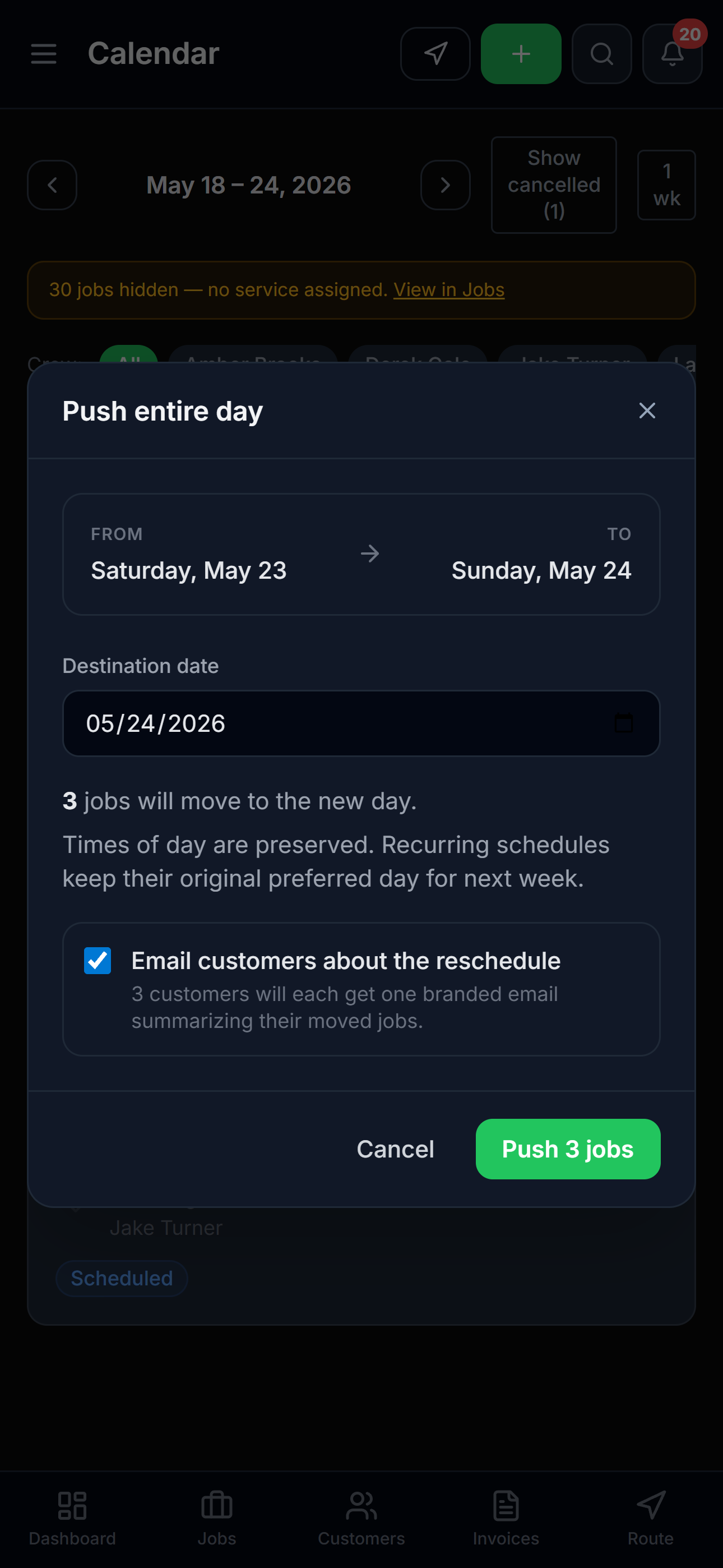
The cloud-arrow icon is on desktop AND mobile day-headers, so you can push a day from the truck if you need to.
What your customers actually see
This is the part operators ask about most. Customers do not get one email per job — they get one email per customer, no matter how many of their properties were on that day's route.
A customer with three properties on your Monday route receives a single message like:
Your visits scheduled for Monday, May 26 have been rescheduled to Wednesday, May 28. — Front yard mow, Back yard mow, Hedge trimming. See you Wednesday.
It's your branding (logo, business name, colors from Settings → Branding) — not a generic provider template. A clean, branded mass-reschedule message looks intentional and professional. Eight separate emails would look frantic.
Which jobs get moved
Push Day is intentionally narrow:
- •Moved: jobs in scheduled or in-progress states
- •Left alone: completed jobs (the work is done), cancelled jobs (don't bring them back), and any job already on a future date
So if storms roll in at 11 AM on a Monday morning, you can push the rest of the day without disturbing the four jobs your crew already finished before lunch.
Recurring jobs and Push Day
If you push a day that contains an instance of a recurring schedule, Lawnager moves only that occurrence — it does not rewrite the underlying recurring template. Your Tuesday-of-every-week schedule stays Tuesday-of-every-week; this specific Tuesday just becomes Wednesday.
A subtlety worth knowing: the next morning's schedule-fill job is smart enough to know you already pushed Tuesday's visits. It will not refill Tuesday with a duplicate visit.
Re-optimize the new day with Smart Schedule
Push Day moves jobs cleanly, but the receiving day is now heavier than it was. To make sure your crew's drive time is still optimized:
- •Go to Smart Schedule (Route Optimization) in the left sidebar.
- •Select the date that now has the rescheduled jobs.
- •Configure your vehicles, crew, and working hours as usual.
- •Click Build Schedule — routes re-optimize with the updated job list.
- •Click Apply Schedule to push the updated routes to your crew's field app.
Crew members will see the updated route instantly on their devices — no need to call or text them individually.
Mid-day changes: If conditions change while your crew is already in the field, crew members can tap Re-optimize Route directly from their field app to get an updated stop order on the fly.
When you can't (or don't want to) use Push Day
A few cases where Push Day isn't the right tool:
- •You only need to move one or two jobs, not the whole day. Drag-and-drop on the Calendar (desktop) is faster: grab the job card and drop it on the new day. The customer's notification is the same single-update format.
- •You need to move jobs to different days for different reasons. Drag-and-drop one at a time, or move them back to the Unscheduled Jobs queue and re-schedule individually.
- •A scheduled day already passed without being pushed. Those jobs become flagged as overdue in the Jobs list with a red indicator. Drag them to a new date, or filter the Jobs list by Status: Overdue to see them all at once.
Common pitfalls
- •Push Day moved fewer jobs than I expected. Push Day skips completed and cancelled jobs by design — they're already in a terminal state. If a job's missing, it's almost always because of that.
- •The email looks generic. Set up your branding under Settings → Branding (logo, business name, brand color). The Push Day email uses the same branding stack as your invoices and quotes.
- •A customer says they didn't get the email. Verify the customer record has a valid email address. The send is logged on the customer's record with type "Push Day Summary."
- •Weather alert fired on a day that looked fine. Forecasts revise. If a severe alert downgrades to medium overnight, the Dashboard banner and Calendar icon reflect the latest reading on the next morning's run. There's no harm in waiting for two consecutive forecasts to agree before pushing.
- •Don't cancel jobs — reschedule them. Cancelling a job removes it from revenue tracking and won't carry forward. Use Push Day or drag-and-drop instead.
- •Recurring jobs: skipped weeks don't auto-create makeups. If a customer needs the missed visit caught up rather than just skipped, schedule a one-off job manually.
Quick reference
| What | Where | |---|---| | See active weather alerts | Dashboard banner, Calendar day-headers | | Push a single day to a new date | Calendar → click cloud-arrow icon on day header | | Move one or two jobs (not the whole day) | Drag-and-drop on the Calendar | | Re-optimize a now-busier day | Smart Schedule → Build Schedule → Apply | | Find overdue jobs (missed without being pushed) | Jobs → Status filter → Overdue | | Turn alert emails off | Settings → Notifications | | See which customers got a Push Day email | Customer detail → Notification log | | Mid-day re-optimization in the field | Crew field app → Re-optimize Route |
Used together, Weather Alerts and Push Day turn a weather-disruption afternoon — the phone calls, the rebookings, the customer comms — into roughly thirty seconds of work.
Still have questions?
Contact support →