Daily Shift Clock: Tracking Crew Hours and Shift Data for Payroll
Learn how the daily shift clock works for crew members, what data it captures, and how to use it for payroll.
Last updated May 5, 2026
Daily Shift Clock: Tracking Crew Hours and Shift Data for Payroll
Lawnager's daily shift clock lets crew members clock in at the start of their workday and clock out when they're done. This is separate from per-job check-in and check-out — it tracks the full length of a crew member's shift, including breaks and drive time between jobs.
Shift data feeds directly into the Crew & Payroll tab in Reports, so you always have accurate hours logged and labor costs calculated without any manual tracking.
How the Shift Clock Works
Crew members access the shift clock from their field app — the same place they view their daily route and complete job checklists. No app download is required; it runs in their phone's browser.
When a crew member clocks in:
- •Their GPS location is captured
- •A live elapsed timer starts (updates every 30 seconds)
- •The clock-in time is recorded
During the shift:
- •The live timer shows total time elapsed
- •Crew members can log breaks in +30 minute increments directly from the shift clock screen
When a crew member clocks out:
- •Their GPS location is captured again
- •Total shift hours are calculated and saved
- •The record is stored under that crew member's profile for the day
Note: The shift clock tracks the full workday. Per-job check-in and check-out (used for job-level time tracking) are separate actions crew members take on each individual job card.
Setting Up Crew Members to Use the Shift Clock
No special setup is required — the shift clock is available to all active crew members automatically. To make sure everything is ready:
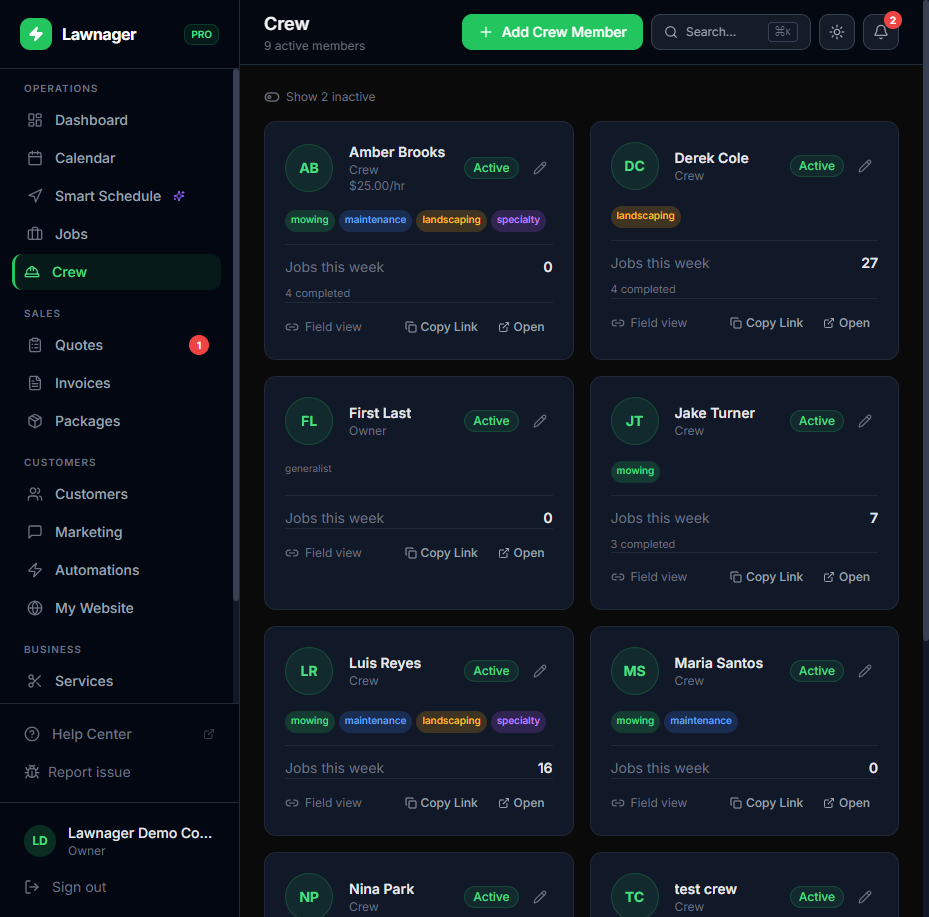
- •Go to Crew in the main navigation
- •Confirm each crew member has an active profile and their preferred language is set (English or Spanish — the shift clock is fully translated)
- •Copy or share the Field App Link from their crew card so they can bookmark it on their phone
How Crew Members Clock In and Out
Share these steps with your crew:
- •Open your field app link in your phone's browser
- •On the daily route screen, tap Clock In at the top to start your shift
- •Your timer will begin counting — you'll see your clock-in time and elapsed hours
- •To log a break, tap + Break — each tap adds 30 minutes
- •At the end of your day, tap Clock Out to close your shift
- •Your total shift hours are saved automatically
Tip for crew managers: If a crew member forgets to clock out, you'll see an open shift in the Reports tab. Remind them to clock out before leaving — Lawnager does not auto-close shifts.
Viewing Shift Data and Running Payroll
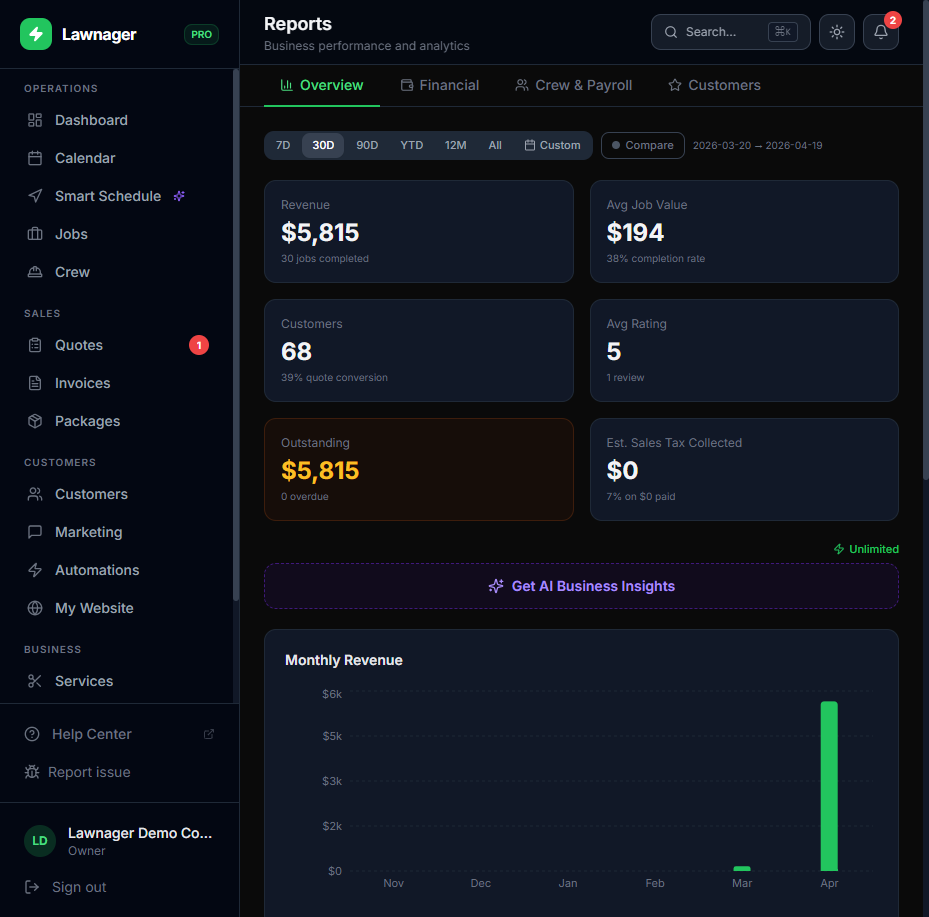
All shift data rolls up into the Crew & Payroll report, which you can use to process payroll each week.
- •Go to Reports in the main navigation
- •Click the Crew & Payroll tab
- •Set your date range (e.g., last 7 days for a weekly pay period) using the filter at the top
- •Review the Crew Timesheet Detail table, which shows for each crew member:
- •Hourly rate
- •Hours worked
- •Jobs completed
- •Average job duration
- •Days worked
- •Total pay (hours × hourly rate — calculated automatically)
- •Revenue generated and revenue per hour
- •Click Export CSV to download the full timesheet for your payroll processor or records
Important: Lawnager calculates total pay using the hourly wage set on each crew member's profile. To update a crew member's rate, go to Crew, open their card, and edit their Hourly Wage field. Future shift calculations will use the updated rate.
Common Questions
Does the shift clock work in Spanish? Yes — the shift clock is fully translated into Spanish. The language defaults to whatever you've set on the crew member's profile. Crew members can also switch languages using the globe icon in the field app.
What if a crew member forgets to clock in? Currently, shift records must be started by the crew member. If they forget, there will be no shift record for that day in the payroll report. Remind your crew to clock in before they start driving to the first job.
Is shift time the same as job time? No. Shift time covers the entire workday — from clock-in to clock-out. Job time is tracked separately when crew members check in and out on individual jobs. Both types of data appear in Reports.
Does Lawnager integrate with payroll software? Not directly. You can export the Crew & Payroll CSV and upload it to your payroll provider, or use the totals to process payments manually. If you use QuickBooks Online, you can sync invoices and payments via the QuickBooks integration under Settings → Integrations.
Still have questions?
Contact support →