How Customers Can Reschedule or Cancel Jobs Through the Portal
Let customers reschedule or cancel appointments themselves through the Lawnager client portal — no phone calls or texts — saving you time and admin work.
Last updated June 20, 2026
How Customers Can Reschedule or Cancel Jobs Through the Portal
When a customer needs to change or cancel an upcoming appointment, they don't have to call you or send a text and wait for a reply. Lawnager's client portal lets customers reschedule or cancel jobs on their own — saving you time and giving customers the flexibility they expect.
This article explains how the self-service rescheduling and cancellation flow works from your customer's perspective, and what you'll see on your end when they make a change.
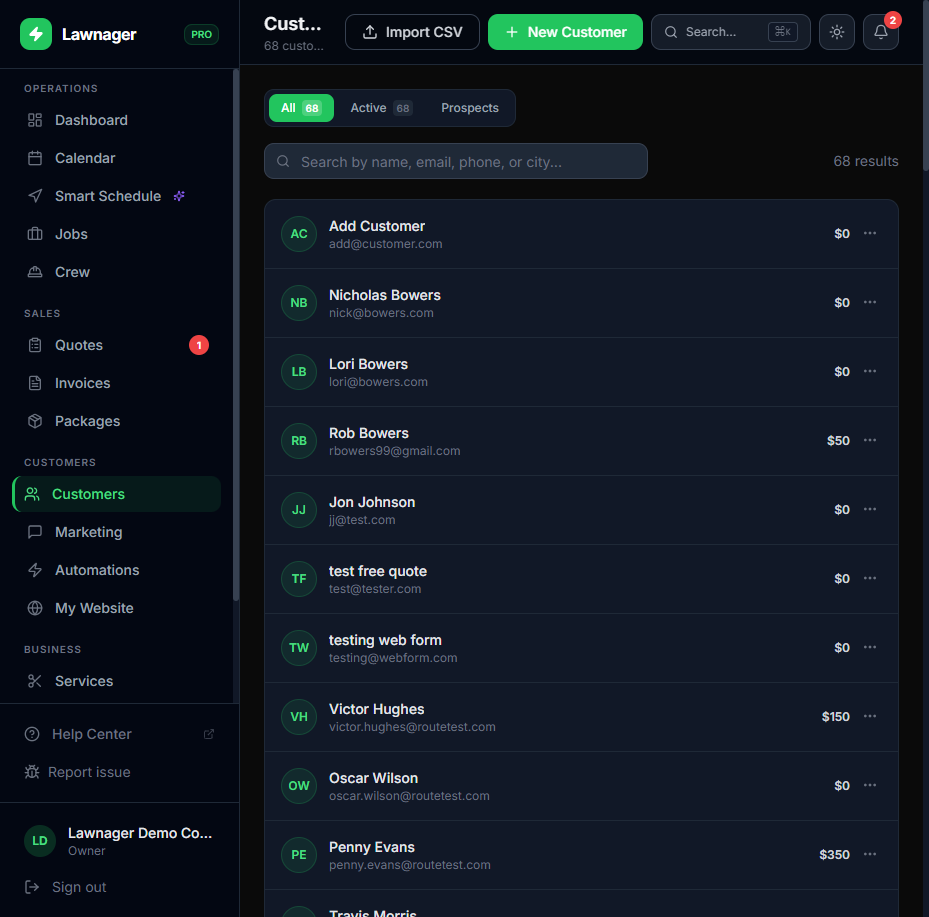
What Customers See in the Portal
When a customer opens their unique portal link, they'll see an Upcoming Job card near the top of the page. This card shows:
- •The service name (e.g., "Weekly Lawn Mowing")
- •The scheduled date and time
- •The assigned crew member
Directly on that card, they have two options: Reschedule and Cancel.
Tip: Every customer gets a unique portal link — no password required. You can resend their portal link from the Customers page by clicking their name and selecting View Portal.
How Rescheduling Works
When a customer taps Reschedule, they're walked through a simple two-step flow:
- •Pick a new date — A date picker lets them choose any upcoming date.
- •Select a time preference — They choose from Morning, Afternoon, or Anytime.
Once they confirm, the job is flagged in your Jobs list as needing rescheduling. It does not automatically move to the new date — you stay in control of your schedule. Use the Calendar drag-and-drop or the Smart Schedule tool to officially slot the job into your route.
Important: Rescheduling through the portal is a request, not an automatic calendar change. You'll see the customer's preferred date and time preference on the job, but the final scheduling decision is yours.
How Cancellations Work
When a customer taps Cancel, they're asked to confirm the cancellation. Once confirmed:
- •The job status changes to Cancelled in your Jobs list
- •You'll receive a notification (if cancellation alerts are enabled in Settings → Notifications)
- •The job is removed from the crew's field app route for that day
Cancelled jobs stay in your Jobs list under the Cancelled tab so you have a full record.
Tip: If a customer cancels a recurring job, only that single occurrence is cancelled — the recurring schedule stays active. You can manage the full recurring schedule from Jobs → Schedules.
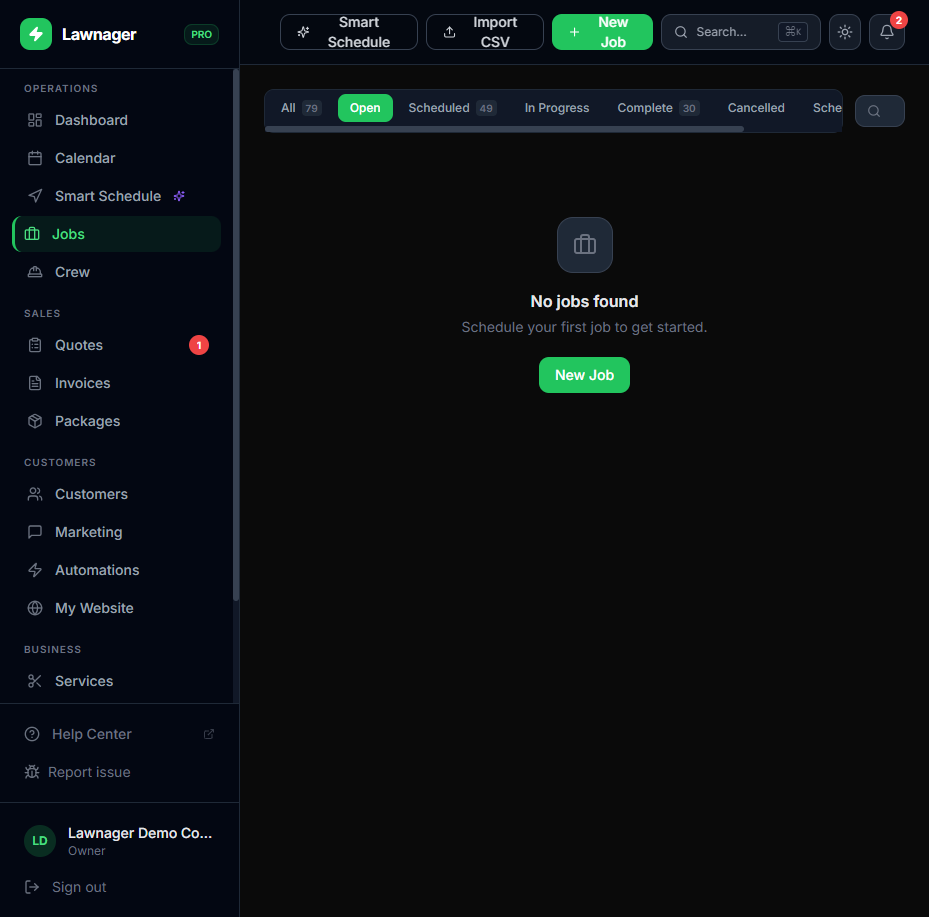
What You'll See on Your End
After a customer reschedules or cancels, here's where to find the updates:
- •Dashboard — The action alert banner will surface jobs that need attention, including rescheduled requests that haven't been confirmed yet
- •Jobs list — Cancelled jobs appear in the Cancelled tab; reschedule requests show the customer's preferred new date in the job details
- •Calendar — Cancelled jobs are automatically removed from the calendar view
Common Questions
Can I disable rescheduling or cancellations in the portal? Not currently — these self-service options are always available to customers who have portal access. You can remove portal access for a specific customer by toggling it off on their customer record in Customers.
Will my crew be notified if a customer cancels? Yes — if the job was already assigned and on a crew member's route, it will be removed from their field app automatically once the cancellation is confirmed.
What if a customer cancels a job with an unpaid deposit? Deposit refunds are handled separately through the Disputes flow. The cancellation itself does not automatically issue a refund. See the Disputes & Refunds help article for details on processing deposit returns.
Does rescheduling affect recurring schedules? No. Rescheduling a single job only affects that occurrence. Your recurring schedule template is unchanged.
Related articles
Still have questions?
Contact support →