Setting Up Crew Language Preferences: English & Spanish Support
Learn how to set each crew member's default language so your team sees the field app in their preferred language.
Last updated May 20, 2026
Overview
Lawnager's crew field app is available in both English and Spanish — making it easier for Spanish-speaking crew members to check in, complete checklists, and navigate their daily route without a language barrier.
You can set a default language per crew member from the office, and crew members can also switch languages themselves directly from their field app.
Setting a Crew Member's Default Language
Do this once per crew member and they'll always see the field app in their preferred language.
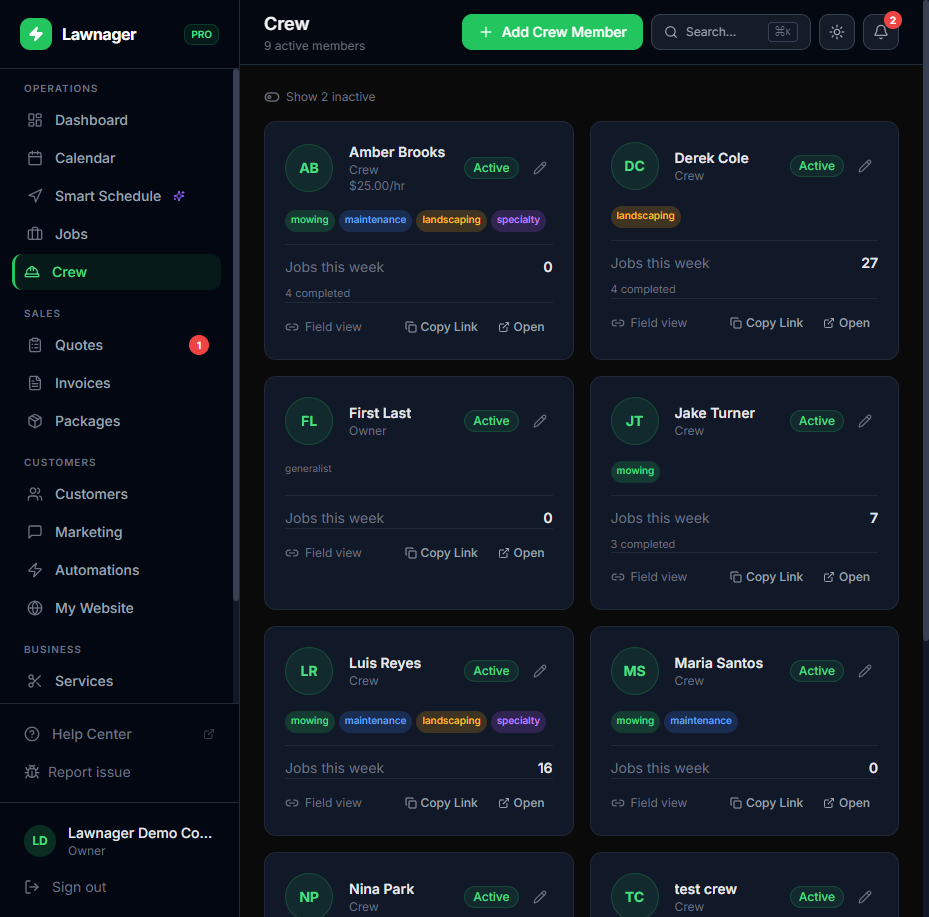
- •Go to Crew in the left navigation.
- •Find the crew member you want to update and click Edit on their card.
- •Scroll to the Language field in the edit form.
- •Select either English or Spanish from the dropdown.
- •Click Save.
The next time that crew member opens their field app link, the interface will load in their selected language.
Tip: Set this up during onboarding when you first add a crew member — it takes 10 seconds and eliminates confusion on the first day.
How Crew Members Can Switch Languages Themselves
Crew members don't need you to make the change for them. They can switch languages directly from their own field app.
- •Open the crew field app link on their phone.
- •Tap the globe icon at the top of the screen.
- •Select the preferred language — the app switches instantly.
The preference is saved on their device, so it stays set for future visits.
What Gets Translated
When the field app is set to Spanish, crew members will see the following in Spanish:
- •Daily job list and stop details
- •Check-in and check-out prompts
- •Pre-shift equipment checklists
- •Job status buttons (e.g., "Start Job," "Complete Job")
- •Daily shift clock (clock-in, break tracking, clock-out)
- •Navigation prompts and on-site instructions
Important: The language setting only affects the crew field app. The main Lawnager dashboard, customer portal, and all settings pages are in English.
Assigning Skills and Language at the Same Time
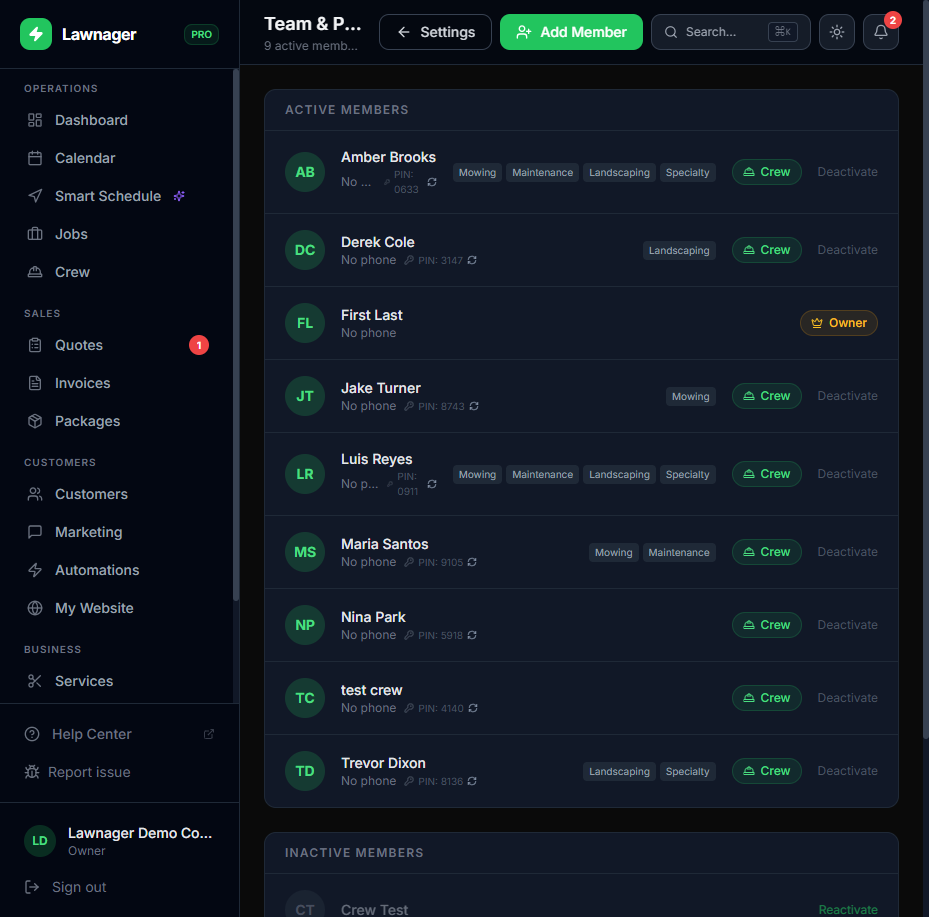
When you invite a new crew member, you set up their profile all at once — including language preference, role, hourly wage, and skills. You don't need to go back and edit later if you fill it in at invite time.
- •Go to Crew and click Invite Crew Member.
- •Enter their name, email, role, and hourly wage.
- •Select their skills (mowing, maintenance, landscaping, specialty).
- •Set their preferred Language.
- •Click Send Invite.
They'll receive an email with their field app link, pre-configured in their language.
Common Questions
Does the customer portal support Spanish? Not currently. The customer portal is English-only. Spanish support is limited to the crew field app.
Can a crew member switch back and forth between languages? Yes — they can tap the globe icon at any time to switch. The setting saves per device.
What if I have a bilingual crew member? Set their default to whichever language they prefer. They can always switch on their own device if needed.
Does route optimization use crew language settings? No — language is a display preference only. Route optimization uses skills and location, not language.
Why This Matters
Miscommunication on job sites leads to missed checklist items, incorrect services, and customer complaints. Giving Spanish-speaking crew members a field app in their native language helps them:
- •Complete pre-shift checklists accurately
- •Check in and out of jobs correctly
- •Understand job instructions without needing a translator
This is built into every Lawnager plan — no upgrade required.
Still have questions?
Contact support →