Chemical Application Compliance Log: Track Pesticide & Herbicide Use
Learn how to set up and use Lawnager's built-in chemical application audit log to stay compliant with state pesticide regulations.
Last updated September 20, 2026
If your crew applies pesticides, herbicides, fertilizers, or other chemical treatments, you're likely required by your state to keep an application log. Lawnager's built-in Chemical Application Compliance Log handles this end-to-end — from setting up your product catalog to letting crew log applications in the field and exporting records for state inspectors.
No more paper logs or spreadsheets. Every application is timestamped, tied to an applicator license, and locked once submitted.
Step 1: Set Up Your Chemical Products
Before crew can log anything in the field, you need a product catalog.
- •Go to Settings → Chemicals
- •Click the Products tab
- •Click Add Product
- •Fill in the product details:
- •Name — e.g., "Roundup Pro Concentrate"
- •Manufacturer
- •EPA Registration Number — required for compliance exports
- •Type — herbicide, insecticide, fungicide, fertilizer, PGR, or other
- •Active Ingredients
- •REI (Re-entry Interval) — hours customers must stay off treated areas
- •Default Rate + Unit — pre-fills the field log so crew doesn't have to type it every time
- •Restricted Use — toggle on for RUP products
- •Click Save
Repeat for every product your crew uses. Products are shared across your entire team.
Step 2: Add Applicator Licenses
Lawnager ties each logged application to the crew member's license — a requirement in most states.
- •Still in Settings → Chemicals, click the Licenses tab
- •Click Add License
- •Enter:
- •Crew member — select from your team
- •State
- •License Number
- •License Type — commercial, non-commercial, private, or technician
- •Categories — e.g., 3A (ornamental), 3B (turf)
- •Issue and Expiration Dates
- •Click Save
License chips turn amber 60 days before expiration and red after expiration — so you're never caught off-guard during an inspection.
Tip: Crew members who are licensed in multiple states can have multiple licenses on file. Lawnager will automatically suggest the best match for each job based on the property's state.
Step 3: Flag the Right Services
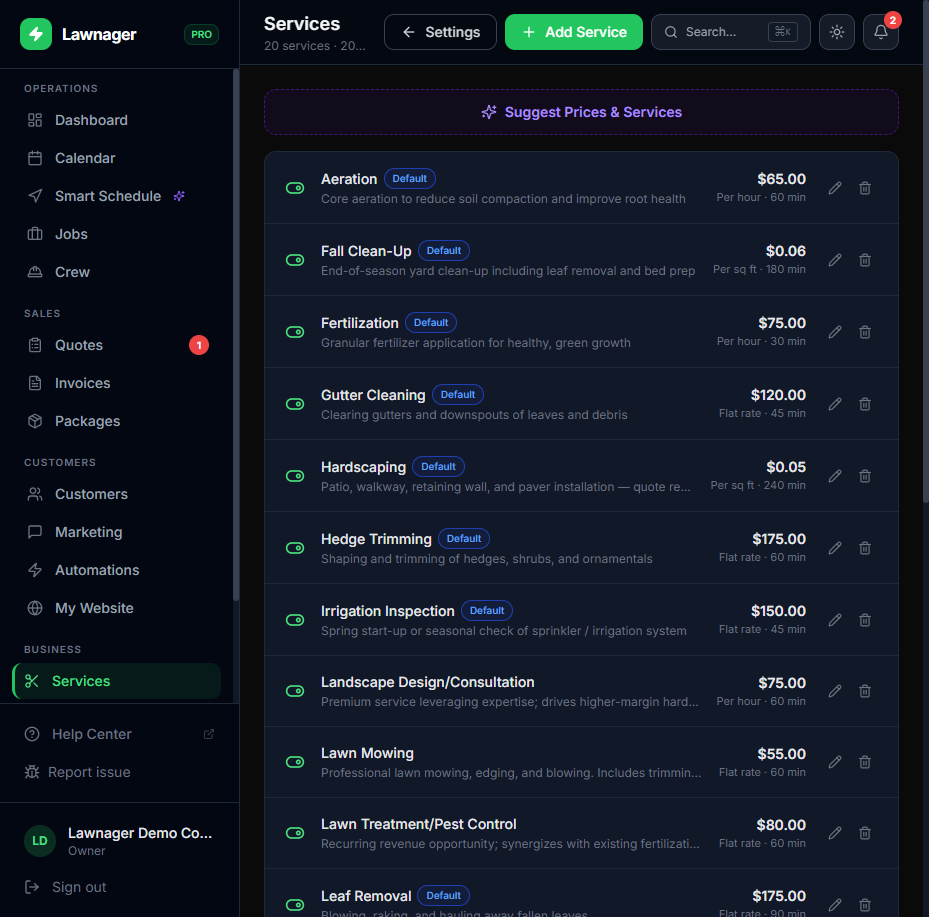
Lawnager only prompts the chemical log when a job involves a flagged service — so your mowing jobs aren't interrupted.
- •Go to Settings → Services
- •Edit any service that involves chemical application (e.g., "Weed Control", "Lawn Fertilization")
- •Check the Requires chemical log box
- •Save
Now whenever a crew member completes a job with one of these services, the log sheet appears automatically before the job is marked complete.
How Crew Logs Applications in the Field
This is the part your crew actually sees — and it's designed to take under 30 seconds.
- •Crew opens their field app and taps Check Out (or Mark Complete) on a chemical-flagged job
- •The Chemical Log Sheet slides up before the job status changes
- •Crew taps a product chip to select what was applied — your catalog products appear as quick-tap options
- •Confirms the rate and unit (pre-filled from your product defaults)
- •Taps Log & Complete
The job is marked complete and the customer notification fires — all in one step.
Optional fields crew can expand:
- •Target pest
- •Treated area (sq ft)
- •Weather conditions (temp, wind, description)
- •REI hours override
- •Notes
Tank mixing: Crew can add multiple products in a single application — useful when combining a pre-emergent with a fertilizer.
No chemicals applied? Crew can tap Skip — no chemicals to complete the job without logging. This is useful for cleanup visits on services that sometimes, but not always, involve chemicals.
Important: Tapping the X or Cancel leaves the job in In Progress — it doesn't accidentally close the job without a log. Crew can retry anytime.
Viewing the Application Log
- •Go to Applications from the main navigation
- •Browse the full audit log in reverse chronological order
- •Use filters to narrow by date range, applicator, or customer
Each row shows:
- •Date and time of application
- •Applicator name and license number
- •Property address
- •Products applied with rate and unit
- •Target pest and treated area (if entered)
- •A Lock chip if the record has been submitted to the state
Exporting Records for Inspections
When an inspector asks for your application records, you have three options:
- •Print Preview — opens a browser-printable version of your filtered records. No records are locked.
- •CSV Export — downloads a spreadsheet with inspector-friendly columns: date, time, address, applicator, license number, product, EPA registration number, rate, units, target pest, weather, and REI.
- •Submit to State — locks every unlocked record in your current filter (you'll see a confirmation before anything is locked), then opens a print-ready HTML version you can save as a PDF.
Note on locked records: Once a record is locked, it cannot be edited or deleted — by anyone. This is intentional. Locked records are your legal protection. If you need to correct a locked record, contact Lawnager support.
A Note on Record Accuracy
Lawnager stores a snapshot of the product name and EPA registration number at the time of each application. If you later rename or deactivate a product in your catalog, historical records still show exactly what was sprayed on that date — no retroactive changes.
Plan & Availability
The Chemical Application Compliance Log is available on all plans — Starter, Growth, and Pro. Compliance tools shouldn't sit behind a paywall.
Still have questions?
Contact support →