Am I Charging Enough to Mow?
Use Lawnager's Profitability report and AI quoting tools to find out which mowing accounts are making you money — and which ones aren't.
Last updated September 20, 2026
Most lawn care operators underprice mowing. Not because they don't care — because they've never had a clear way to see whether a $45 mow actually makes money after paying the crew. Lawnager gives you two tools to answer this question: the Profitability report and the AI quote estimator.
Step 1: Check Your Actual Profit Per Account
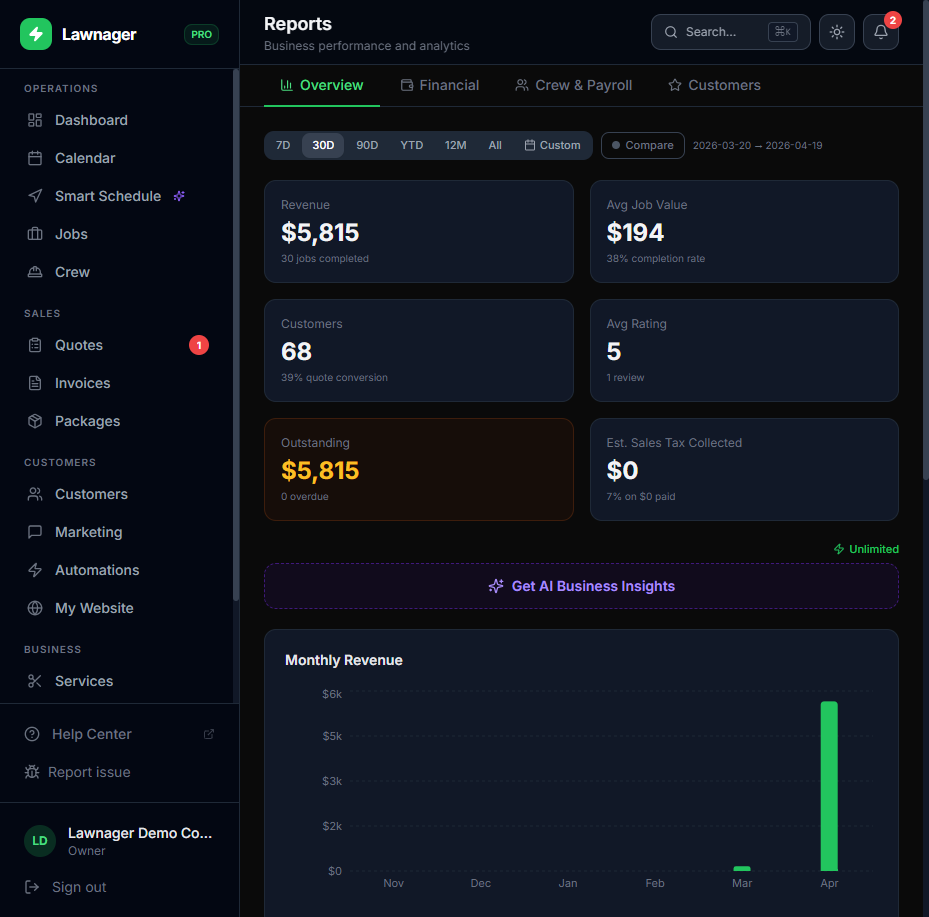
The Profitability tab in Reports shows you what each customer account actually costs you in labor — and what margin you're earning.
- •Go to Reports in the left nav.
- •Click the Profitability tab.
- •Set your date range (try Last 90 Days to get a meaningful sample).
- •Scan the customer list for accounts highlighted in red or amber — these are your thin-margin accounts (under 30% margin).
What the numbers mean:
- •Revenue — what you charged the customer
- •Labor Cost — actual time on site (from crew check-in/out) × crew hourly wage
- •Gross Profit — revenue minus labor cost
- •Margin % — profit as a percentage of revenue
A mow that takes your crew 75 minutes but you charged for 45 is losing money on every visit. The Profitability report makes this visible.
Tip: Profitability only calculates for jobs where your crew used check-in/out. Jobs without time data show as "untracked" — not assumed free. If you're missing a lot of data, make sure your crew is using the field app to check in and out on each job.
Common pitfall: Crew hourly wages must be set on each crew member's profile for the math to work. Go to Crew, click a crew member's card, and confirm their Hourly Wage is filled in.
Step 2: Download the Data for a Closer Look
Once you've identified problem accounts, export the full list.
- •On the Profitability tab, click Export CSV.
- •Open in Excel or Google Sheets.
- •Sort by Margin % ascending to see your worst performers at the top.
This gives you a prioritized list of accounts to reprice at renewal.
Step 3: See What You Should Be Charging
If you find accounts that are underpriced, use the AI quote estimator to see what market rate looks like for that property.
- •Go to Quotes and click New Quote.
- •Select the customer and Mowing as the service.
- •Let the AI fill in estimated labor hours and materials based on your service area.
- •Compare the AI's suggested price against what you're currently charging that customer.
If there's a meaningful gap, it's time to send a revised quote or update the customer's recurring rate.
Tip: Set up your Materials & Supplies catalog first (Settings → Materials) so the AI uses your actual costs, not generic estimates. This makes the suggested pricing much more accurate.
Step 4: Fix Thin-Margin Accounts
Once you know which accounts to reprice, you have a few options:
- •Send a revised quote — Create a new quote for the customer with updated pricing. The customer receives it through the portal and can accept with an e-signature.
- •Offer a service package — Sometimes customers accept a price increase more easily when it's framed as a seasonal package. Go to Packages and create a mowing bundle at the corrected rate.
- •Review the job duration — If margin is thin because jobs are running long, check whether the crew is spending extra time on that property. You may have a scope problem, not a pricing problem.
Quick Reference: Healthy Mowing Margins
- •30–40% margin — Acceptable. Watch for scope creep.
- •40–60% margin — Healthy. You have room for fuel, equipment wear, and overhead.
- •Under 30% margin — Review pricing. This account is likely costing you more than you realize.
- •Under 0% margin — You're paying to service this customer. Reprice immediately or part ways.
Remember: The Profitability report only accounts for labor cost today. Materials and overhead aren't factored in yet — so your true margins are actually lower than what's shown. Build in a buffer when setting prices.
Related articles
Still have questions?
Contact support →